In this section you will learn about how to navigate the platform to access the data of a deal. In addition, this section will talk about the various modules that can be used to track data for a deal.
For an in depth guide with details on how to utilize the various modules, see the Help Guide on Deals.
Overview
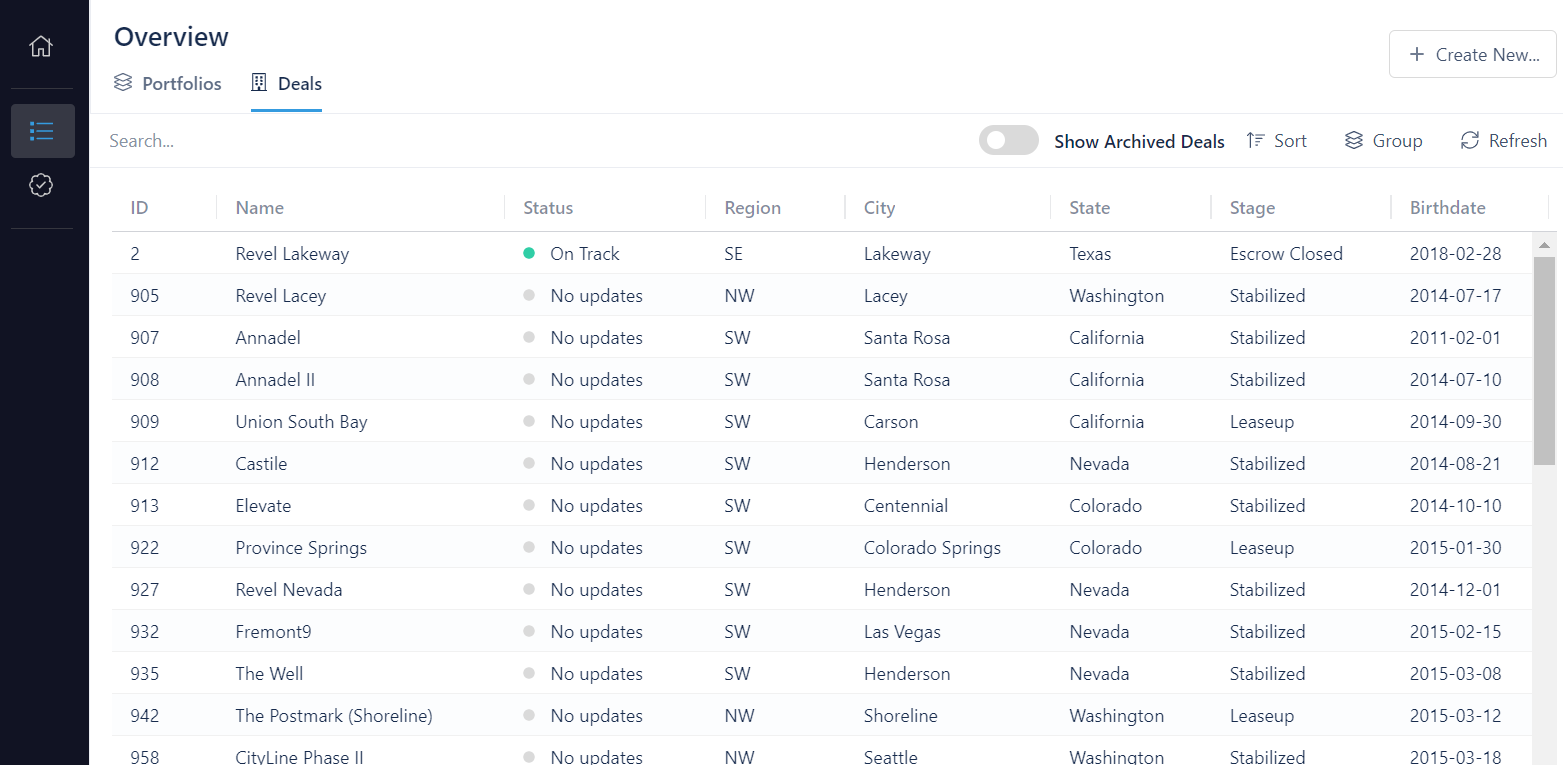
The deals that are tracked within an organization can be accessed from the Overview page that you can navigate to using the main sidebar of the app on the left side of your browser window. From there, you have two options:
- Click on a specific Portfolio to view its deals
- Click on the Deals tab to view all of the deals for your organization
For more information on viewing deals within the context of a Portfolio, see the Portfolios Overview. From within the Deals tab, you will see a list of deals with a basic set of information. You view the details of a deal by clicking on its name within the table.
Deal Details
When you click on a deal, you will be taken to its Summary page. This page shows the basic details of a deal and also summarizes data from other parts of the app. A list of the modules for a deal is shown in the Deal sidebar which will be visible on the left side of the screen. The modules are as follows:
Summary
As noted above, the Summary page contains data from various modules. It is also the home for viewing and providing Status Updates for a deal. The latest status update is prominently shown on the right side of the summary page with its "status" indicator: On Track, Off Track, or At Risk.
The purpose of these status updates is to capture details about the current ongoings of a deal and to indicate at a high level, the condition of the project.
In addition to the status updates, the summary page is the place to view and edit the following:
- Metadata such as the Fund, Source, and Stage of a deal
- Key Risks and Deal Merits
- Narratives such as Deal Background and Investment Vision
- Other Property, Market and Production details
- and more...
To see more information on the above mentioned items, see Understanding the Deal Summary Page.
Team
The Team module is used to manage this list of people and organizations that are associated with the project. These people and organizations can be assigned to specifc roles such as "Project Lead" or "Architect". These roles can be defined in the Organization Settings so that you can track all of the possible roles needed for each deals unique situation.
To see more details about the Team module, see the Team guide section.
Contacts
Your organization's contacts can be assigned to a deal to keep track of the contacts associated with the project. After doing so, the module can be used by all when needing to see who to contact for any particular reason.
See the Contacts section for more details.
Approvals
This module is really a filtered version of the greater approvals module, but just filtered for the specific deal that is being viewed. For details about the Approvals module, see Approvals.
Project Schedule
The Project Schedule module is where the various events that make up the schedule of a deal can be tracked. The events tracked in this module are of two general types: Milestones and Phases. These events are displayed with their start/end dates and shown on a simple gantt chart to give a visual representation of their timing compared to the overall timeline of the deal.
See the Project Schedule guide section to learn more about Milestones and Phases, as well as the other features provided by this module.
Project Budget
This module gives a place to view the many details of a deals budget. The Project Budget module contains a Rolling Forecast view, a list of the forecasted Transactions for a deal, a section for viewing the budget Revisions, and more.
This is one of the larger modules within the app, and it is closely interconnected with the Project Schedule module. To learn more about what data can be viewed and captured in this module, view the Project Budget section of this guide.
Underwriting Analysis
The Underwriting Analysis module provides a way to capture analyses of the financials of a deal over time. The analysis instances contain Metrics data that can be reported on in various ways throughout WolffTrax. A specific analysis can be marked as the "Current" analysis, which will then cause its data to be shown in the Pinned Metrics of the summary page, as well as on Portfolio Views where specified.
Learn more about how to leverage this module in the Underwriting Analysis portion of this guide.
Checklists
In this module, the data for re-useable checklists is tracked for a deal. This could be a set of tasks that need to be performed for every deal, or a strict set of requirements and approvals that need to be kept track of.
The checklists and items that appear on those checklists can be configured in the Checklist Configuration section of the app.
See the help guide section on Checklists to learn more about using this module.
GC Estimates
The GC Estimates module is used to keep track of estimates received for a deal and whether or not they are applicable. To see more about this module and its provided functionality, see GC Estimates.
Construction
The Construction module contains a look at the details of changes of the GC Contract with respect to the timing and cost of a deal. As the circumstances of a construction project change over time, the budget and schedule are often impacted and these impacts are represented within the app as Change Events, Potential Change Orders (PCOs), and Change Orders. This module is for capturing and anayzing the impact of these changes.
The Construction section of this guide gives more details on the functionality of this module.
Buildings
The various buildings of a development project can be tracked with their associated metadata (e.g. TCO Dates, Unit counts) from within this module.
See Buildings for more information.
Bonds
The Bonds associated with a deal can be created and tracked from within this module. For more details, see Bonds.
More information on these specifics of the above modules and how to use them can be found in the Help Guide on Deals.