This guide is intended to show a WolffTrax Excel add-in user how to export an analysis into WolffTrax.
Configuring the Sheet
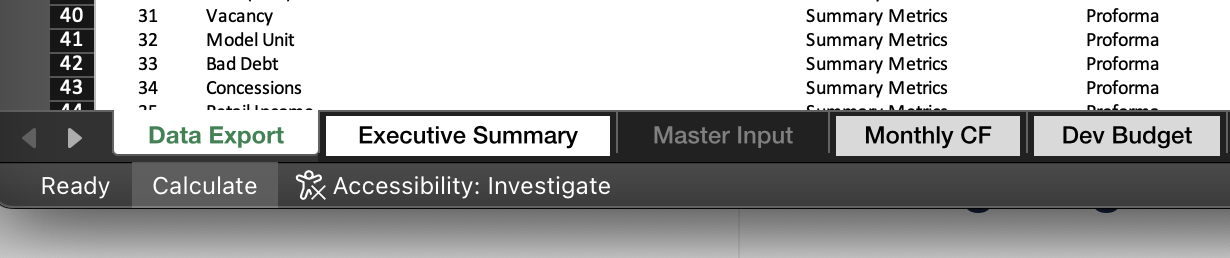
The Excel Add-In expects AT LEAST one sheet named "Data Export" to exist within the xlsx file. Multiple sheets can be exported from within one book, but they all must start with "Data Export".
For example, you could export 3 sheets named "Data Export 1", "Data Export 2", & "Data Export 3".
Attemping to export a model without at least one sheet named "Data Export will result in an error.
Configuring the Deal
The Excel Add-In needs to know the ID of the Deal to import the model into in WolffTrax.
Find the ID of a Deal by visiting a Portfolio View like so:

Once you have the Deal Id, it must go in Cell L5 and it must be a number
Configuring Your Data
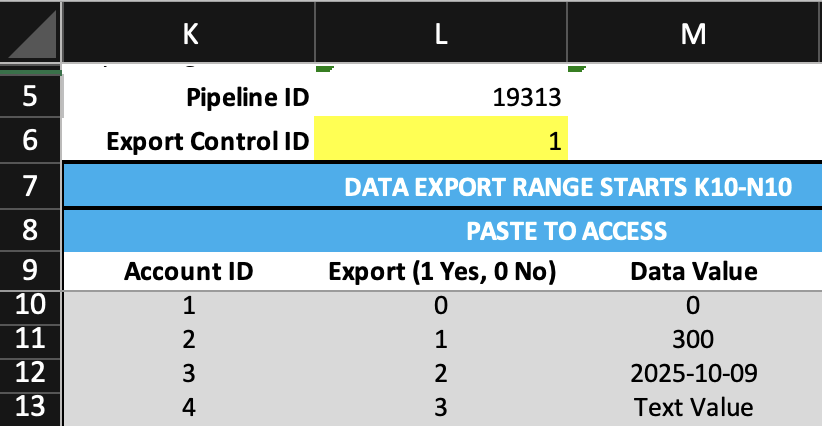
The Add-In expects the following columns to exist in the data.
- Column K - Represents the ID of the metric or event to export.
- Find the ID of a metric
- Find the ID of an event
- Column L - Represents if (and how) to export the row
- If L equals 0, then the row is not exported.
- If L equals 1, then the row is exported as a metric.
- If L equals 2, then the row is exported as an event.
- If L equals 3, then the row is exported as plain text.
- Column M - Values to export
- If the row is a metric, the value must be a number and not a formula
- If the row is an event, the value must be in
yyyy-MM-ddformat.
Additionally, the exported data must be in Range K10:M2000. If a model requires more rows than this, please reach out to IT.
Export Example:
Configuring Data For Comparable Analyses
The excel add-in has an option to export as a Comparable Analysis.
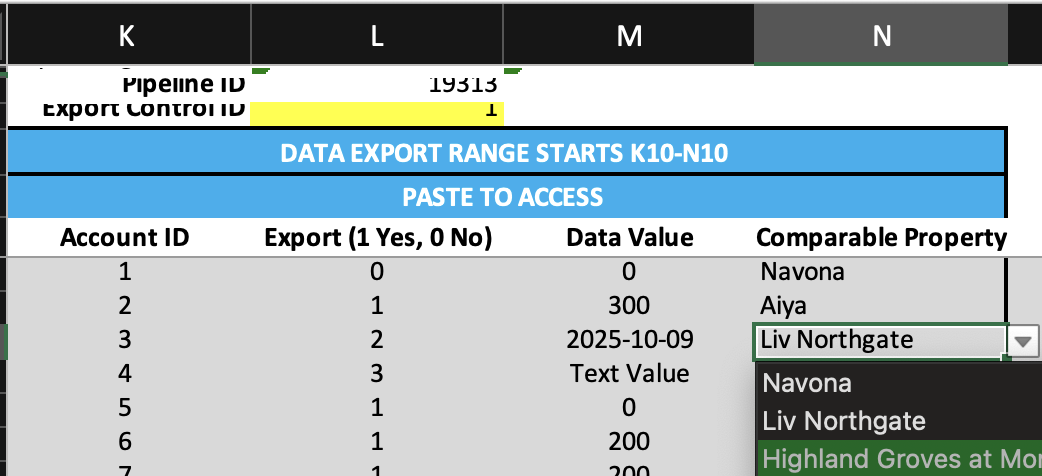
When exporting as a comparable analysis, a Lookup sheet will be automatically created and/or updated named "ComparableProperties".
This sheet will be used to populate Column N, which is a required column when exporting as a comparable analysis.
Column N represents the Name of the Comparable Property associated with that metric
Comparable Export Example:
Using the Add-In
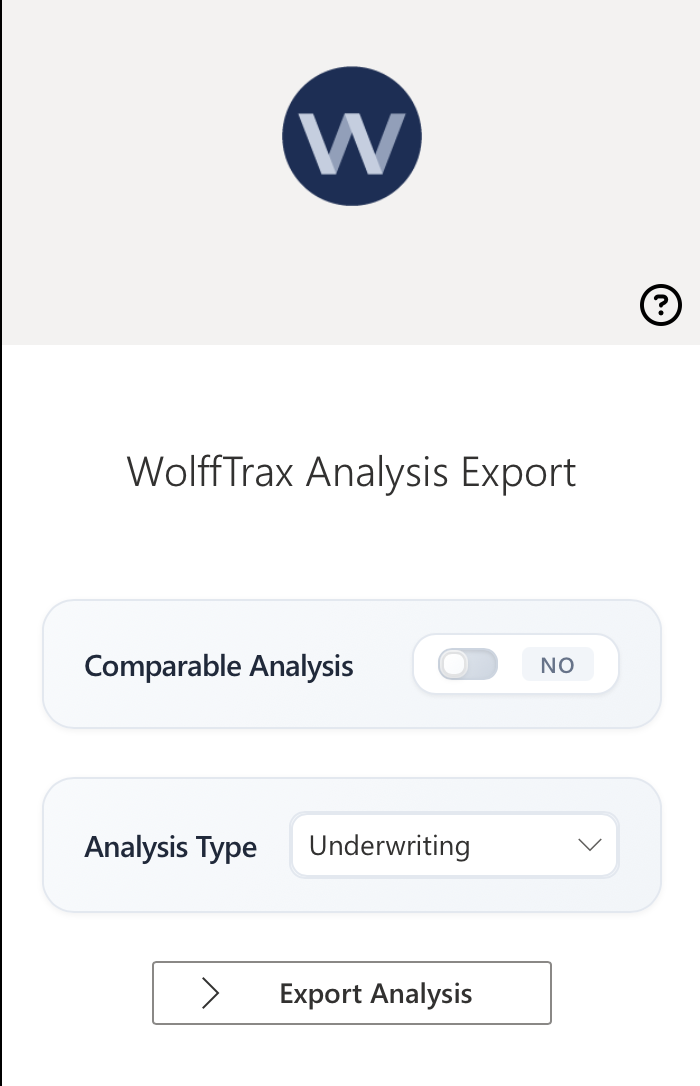
When you click on the Excel Add-In button, a side menu will open with the add-in loaded.
Once you login, you'll be prompted to choose whether it's a comparable analysis, then select the Analysis Type. Click Export Analysis when ready to export.
Verify by going to the Analysis page of the specified deal.
If you are still unable to find a section of the guide that helps answer your question, you can submit a help request.