Checklist Configuration
Creating a Checklist
The checklists that are added to deals are managed in Organization Settings. When you go to Checklists in Organization Settings, you will be taken to a page that lists all the current checklists.

To create a new checklist:
- Click on + New Checklist
- Enter a name
- Enter a description
- Click Create Checklist
Editing a Checklist
Selecting a checklist will take us to a page that allows us to see more details.
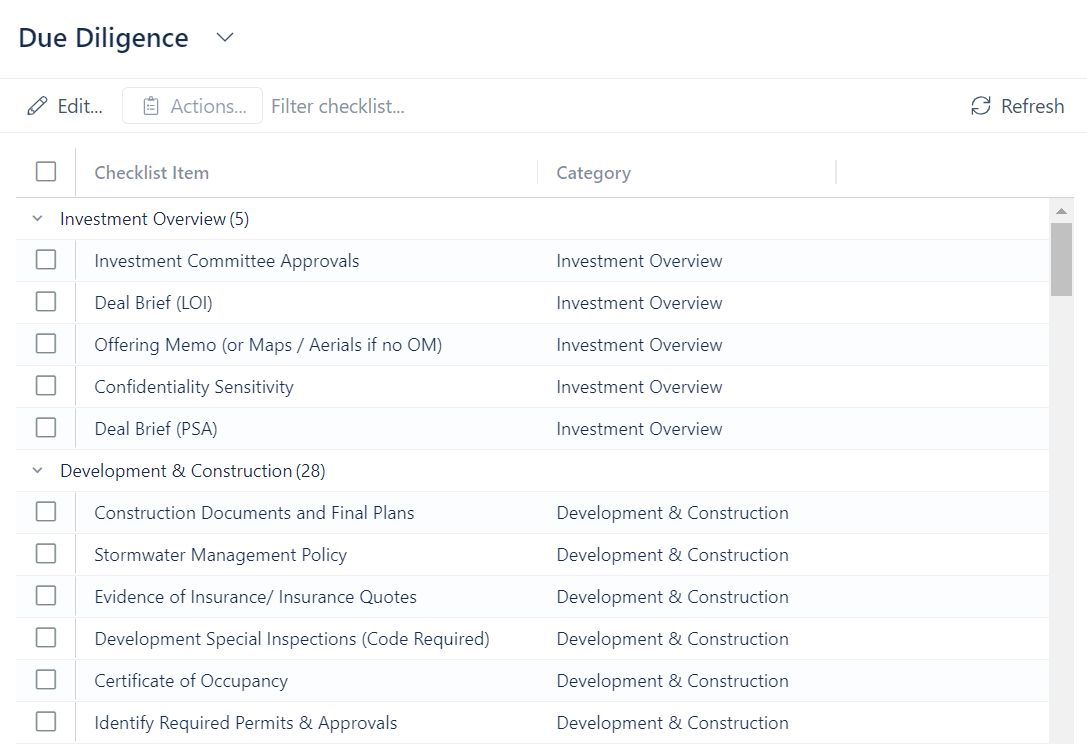
In the page above, we see the "Due Diligence" checklist. Each checklist is made up of categories and items. Categories are made up of one or more items.
To create a new item:
- Click on Edit
- Click on Add new checklist item
- Enter a name
- Select a category (if the category doesn't exist, type a new name and click on Create "Name")
- Click Create
To change a checklist name/definition:
- Click on the arrow next to the checklist name
- Select Edit checklist
- Change the name and/or description
- Click Update Checklist
To disable a checklist:
- Click on the arrow next to the checklist name
- Select Disable checklist
- Click Yes, disable
To delete a checklist:
- Click on the arrow next to the checklist name
- Select Delete checklist
- Type the name of the checklist
- Click Delete this checklist and all of the deal data using it