Budget Configuration allows you to manage the Accounts and Account Trees that are available in deal budgets.
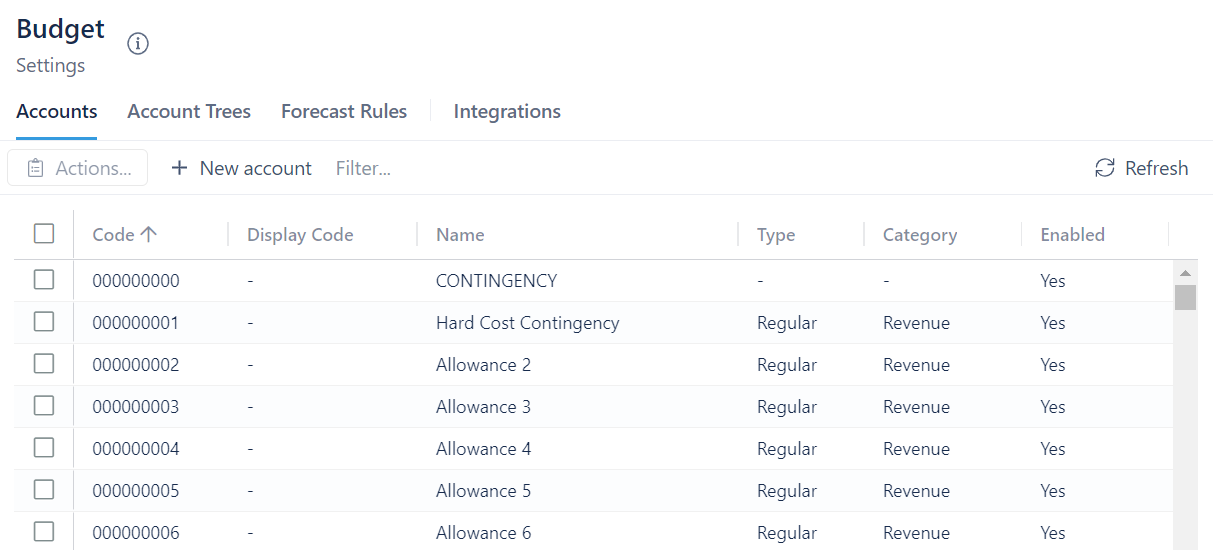
Accounts
To add a new account:
- Click on + New account
- Enter a name, code, and display code
- Select the type and category from the dropdown menus
- Click Create
To edit an account:
- Click on the account you want to edit
- Click on Actions
- Select Edit selected account
- Change the details as wanted
- Click Save
To disable/enable an account:
- Click on the account you want to disable/enable
- Click on Actions
- Select Disable/Enable selected account
- Click on Yes, disable/enable account
To delete an account:
- Click on the account you want to delete
- Click on Actions
- Click on Delete selected account
- Click on Yes, Delete account
Account Trees
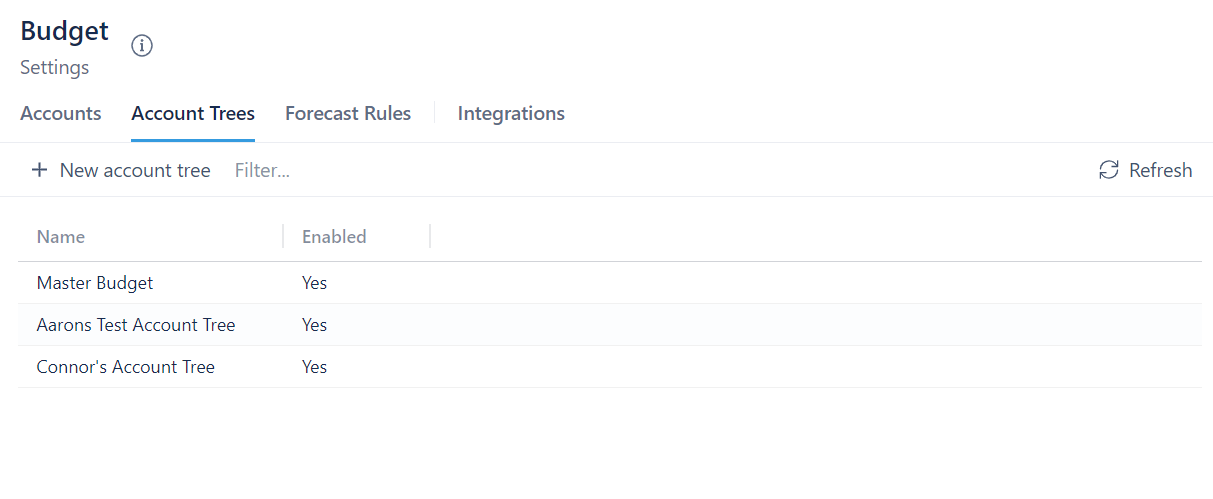
To create a new account tree:
- Click on + New account tree
- Enter a name for the account tree
- Click Create
When you create a new tree it will appear on the list of account trees. Click on the account tree to manage it and see more details.
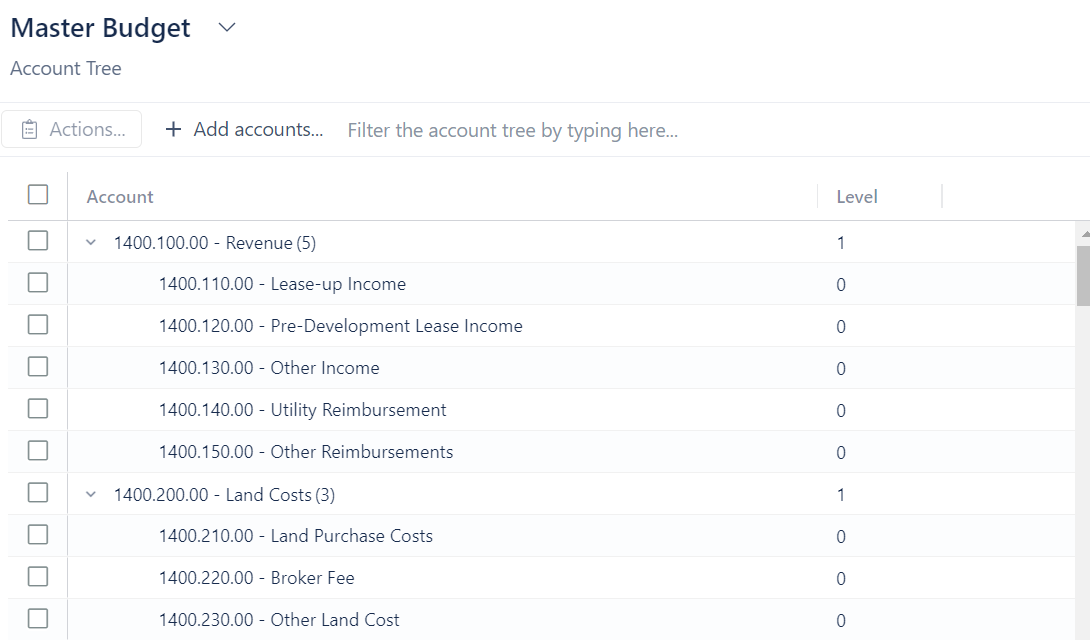
To add accounts to an account tree:
- Click on + Add accounts
- Select the accounts you would like to add
- Click Add Accounts
To remove accounts:
- Click on the accounts you would like to remove from the tree
- Click on Actions
- Select Remove selected
- Click Yes, remove accounts
To change the hierarchy for an account:
- Click on the accounts you would like to change the hierarchy for
- Select a new parent account from the dropdown menu
- Click Update Accounts
Interest Rates
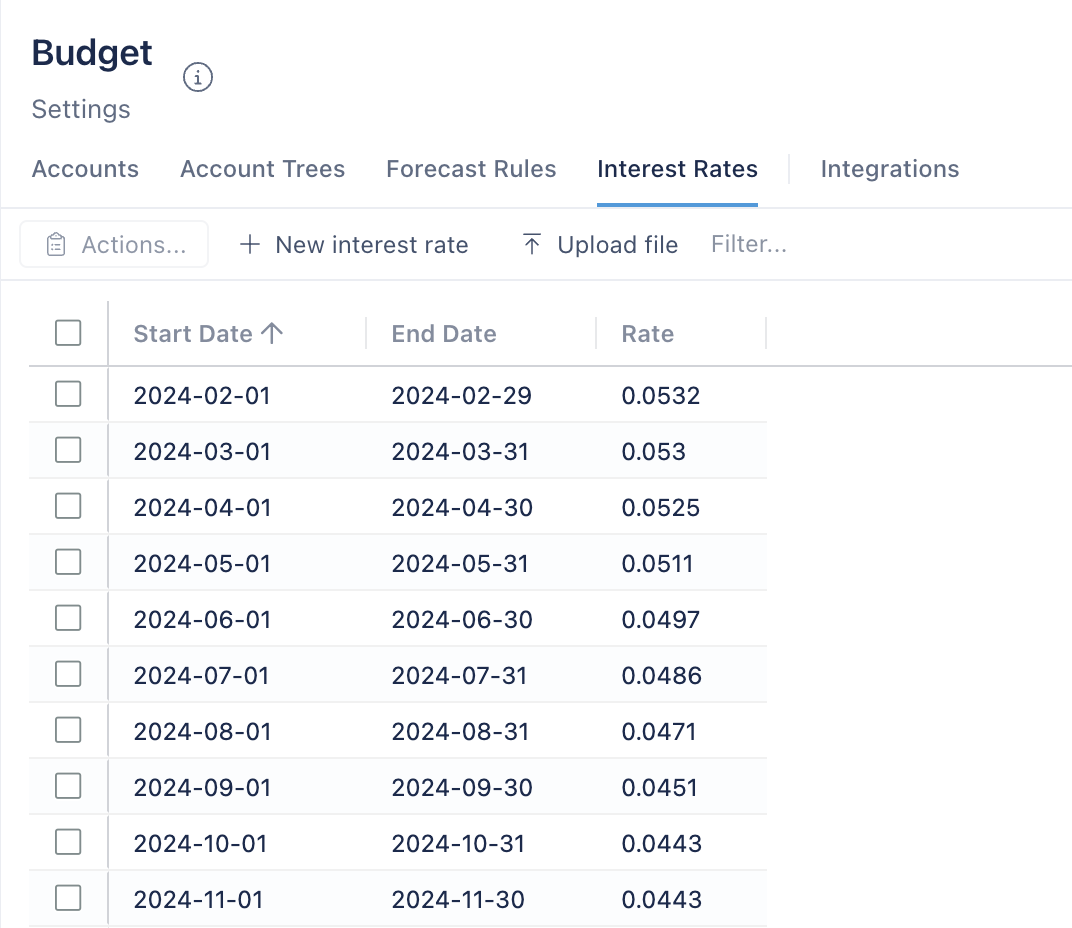
This section is a list of interest rates and their correspanding dates. These interest rates are used in the budget module when the "Forecast Interest Account" button is clicked.
Formatting
The interest rates are presented as decimal values (i.e. 0.05 means a 5% rate)
Uploading Interest Rates
When uploading a file, make sure that it looks like the screenshot below.
Here are the steps that MUST be followed:
- Copy the dates & rates data from Chatham into a new excel file (Columns A & B). Be sure to name the headers "Date" and "Rate" for columns A and B.
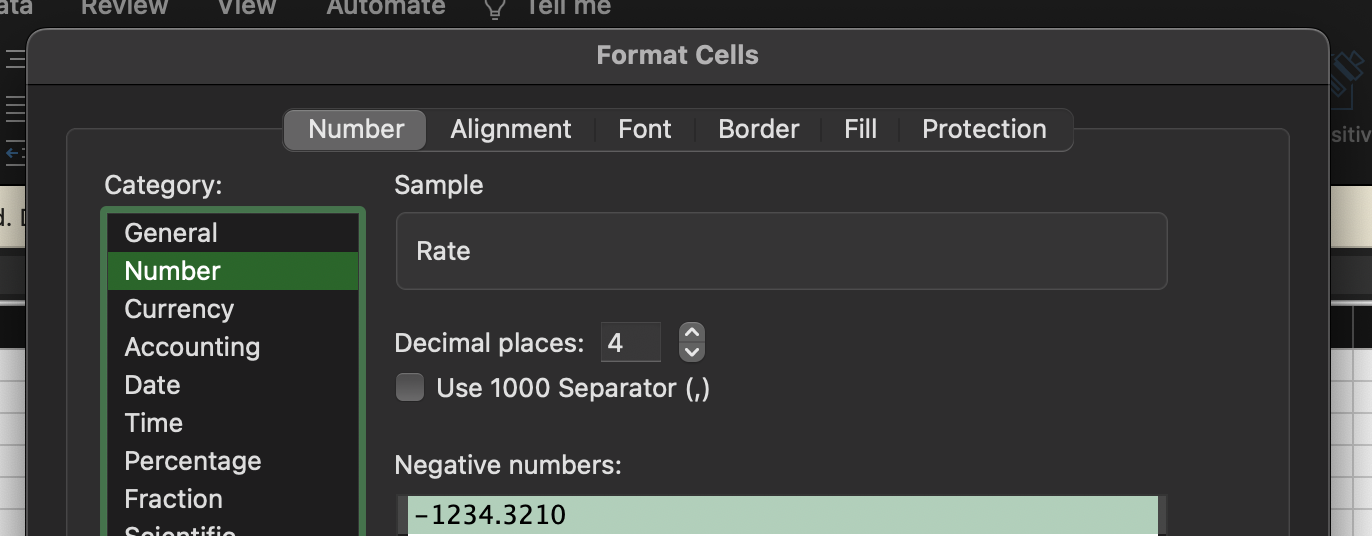
- Update the rate formatting to be decimal instead of percentage.
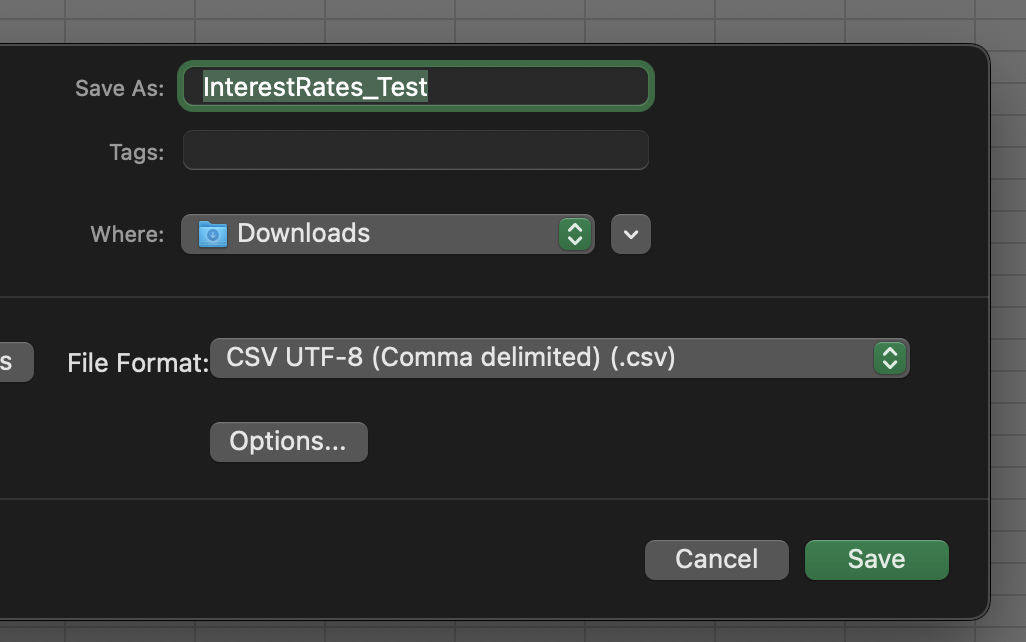
- Save the file as a CSV
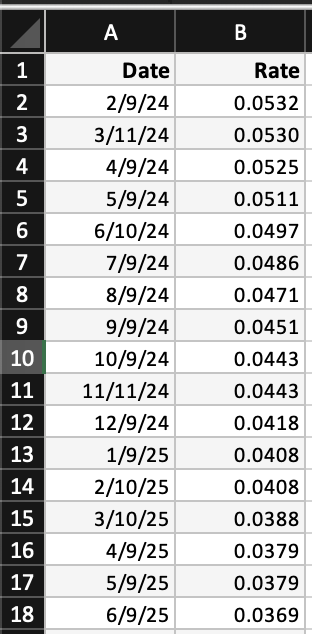
Update to a decimal w/ 4 places
Save as CSV