Managing Groups
Groups is a feature in WolffTrax that allows you to make groups of users. When using a list of members in other parts of WolffTrax, you will be able to see groups in addition to individual users. (Example: If you repeatedly have to add the same 5 team members to a deal, instead of adding these members individually, you can put them all in a group and add that group to a deal.)
The Groups page shows you the groups that already exist and allows you to add, delete, and edit groups.
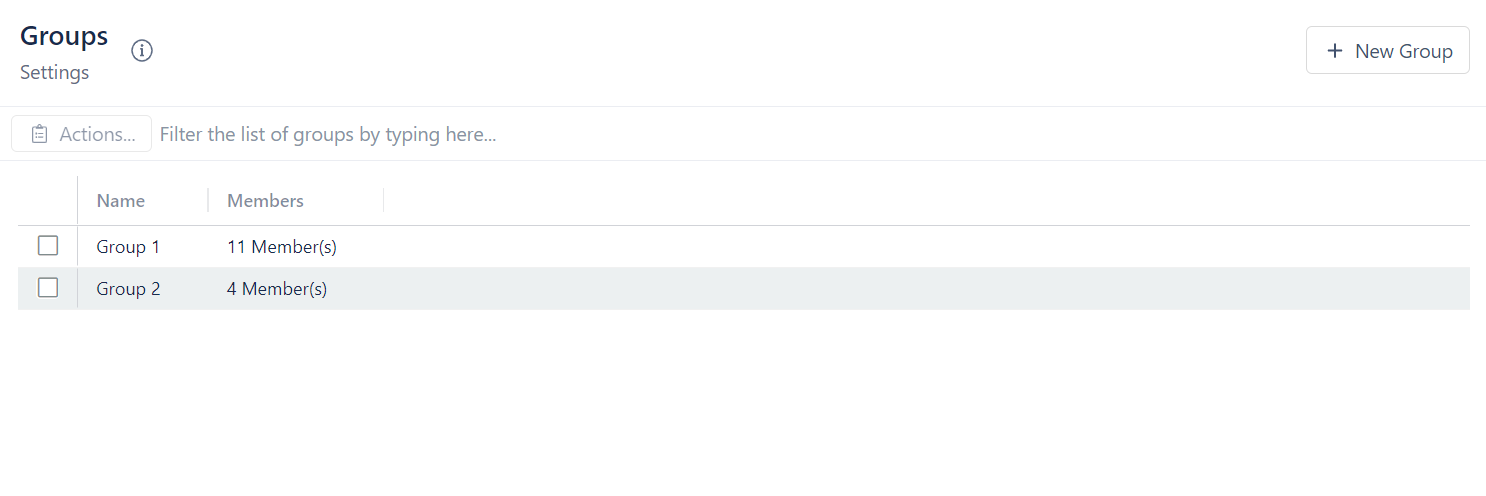
To create a group:
- Click + New Group
- Enter a group name
- Click Save
To add users to a group:
- Click on the group you want to add users to
- Click on Add Members
- Select the members you want to add
- Click Add Selected Members
To remove users from a group:
- Click on the group you want to remove users from
- Click on the box next to the name of the user you want to remove
- Click on Remove Selected Member(s)
To change the name of a group:
- Click on the group whose name you want to change
- Change the name
- Click Save
To delete a group:
- Click on the box next to the name of the group you want to delete
- Click on Actions
- Select Delete group
- Type the name of the group in the text box
- Select Delete "Group Name" group