Portfolios provide a view into a group of deals in a single place. By leveraging portfolios, you can monitor the status of multiple projects and create custom views to report on those projects how you see fit Custom Views.
Creating a Portfolio
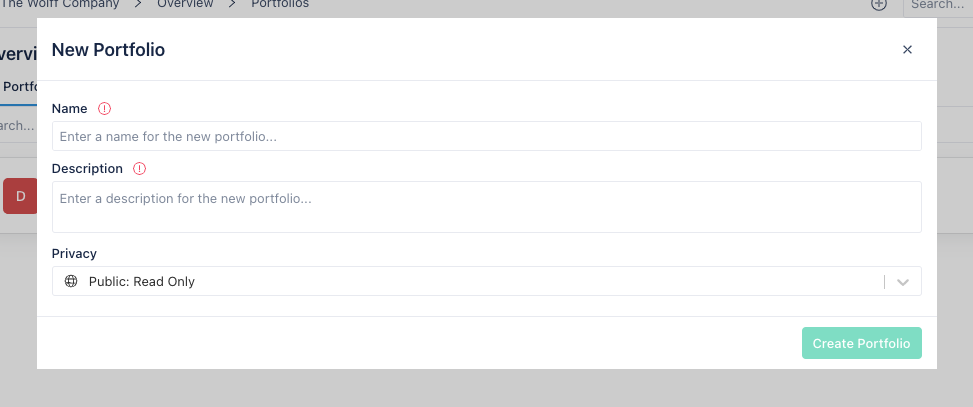
To create a Portfolio:
- Click on Overview on the sidebar
- Click on the + Create New... dropdown menu on the far right of the screen and choose New Portfolio
- Enter a name and brief description for the portfolio
- Choose a privacy level (By default this is set to Public: Read Only)
After creating your portfolio, it will be visible to you on the Portfolios section of the organization overview page. Clicking on a given portfolio will show you its contents.
Adding Deals to a Portfolio
When it comes to determining which Deals are shown within a Portfolio, there are really two types of Portfolios: Static or Dynamic.
Static Portoflios
With a static Portfolio, you are given the option to specify exactly which Deals should be shown in the Portfolio. You can do this by clicking Edit Deals in the top right corner of the portfolio details page, and then selecting the Specific Deals option displayed in the set of options.
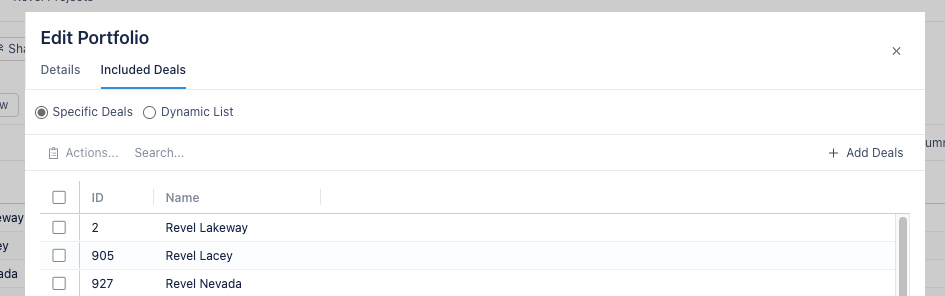
This will then show you a list of all deals currently included in the portfolio. You can remove deals by:
- Selecting them from the list (using the checkbox to the right of their name)
- Clicking on the Actions... menu
- Clicking Remove selected deals from portfolio...
Deals can be added to the portfolio by:
- Clicking on Add Deals at the right side of the displayed toolbar
- Selecting a set of deals
- Clicking Add Deals
Dynamic Portfolios
With a dynamic Portfolio, you can specify filters that will applied to determine which deals should be included in the portfolio. You can do this by clicking Edit Deals in the top right corner of the portfolio details page, and then selecting the Dynamic List option displayed in the set of options.
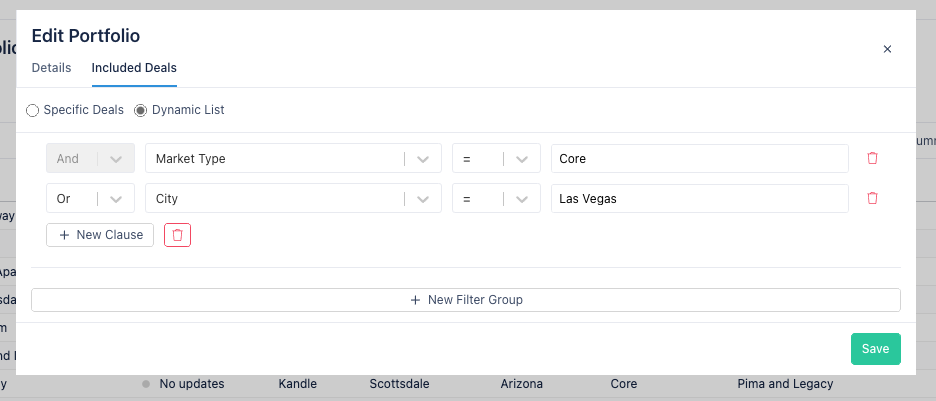
To start defining filters, click on the + New Filter Group button. This will add a filter group with an initial clause ready for you to define the following:
- A logical operator (And or Or)
- A deal attribute (e.g. City, State, Product Type)
- A equality operator (e.g. =, >=)
- The value of the attribute
Each clause included in the filter group must specify all of the above information. You can add an additional clause to a filter group by clicking + New Clause at the bottom of the filter group.
To remove a clause from a filter group or to delete a filter group, click on the red trash button located next to the clause or at the bottom of the filter group.
After editing the filters to contain the desired logic, click Save in the bottom right of the pop-up to save the filters for the Portfolio. After refreshing the view, you should now only see deals in the Portfolio that satisfy the logic specified in the filters that were created.
Understanding the Portfolio Details page
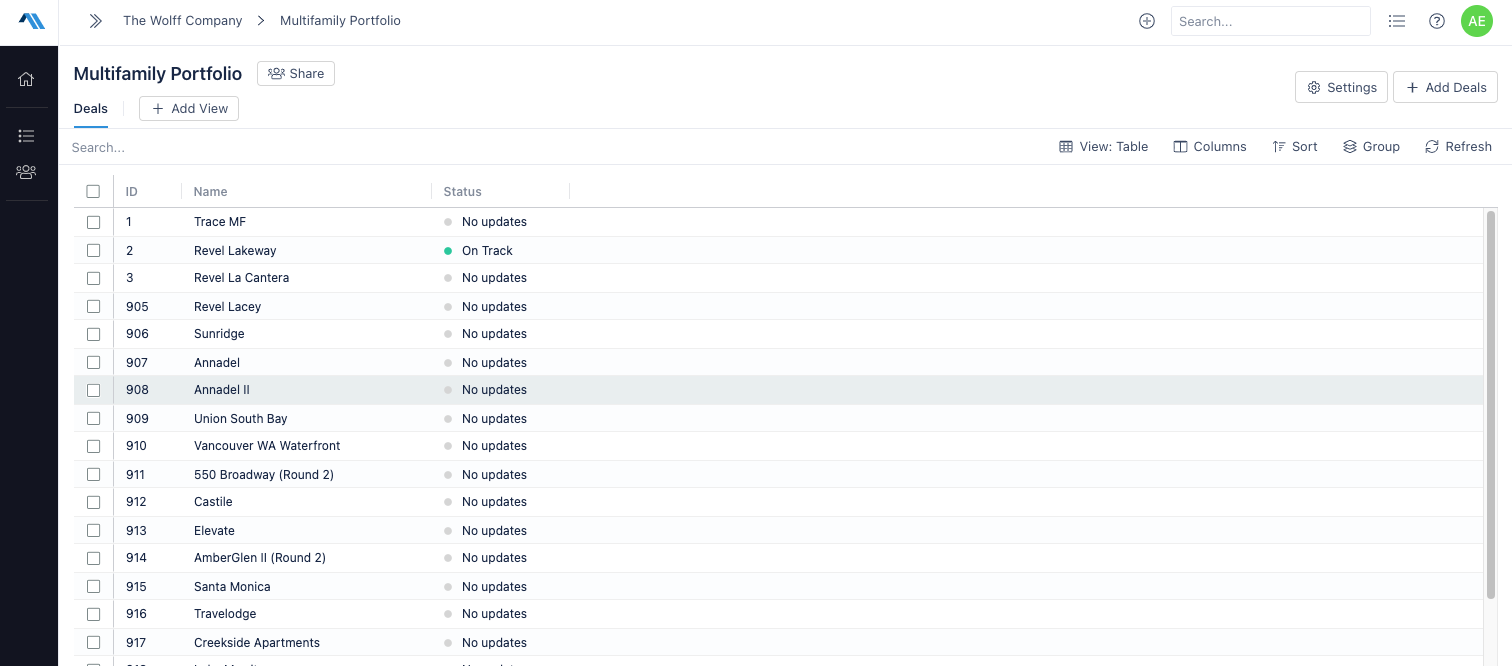
Portfolio Views
Each portfolio will have a set of tabs displayed along the top of the page, called Views. Every portfolio will have a default view, labeled Deals. As mentioned, this view is present on all portfolios and will show all active deals in the portfolio and a basic set of attributes for each deal. While this view cannot be removed from the portfolio, it can be customized simlar to custom views added by users.
In addition to the default view, a Portfolio can have multiple custom views, that can be added and customized to provide a new way to to digest the information of deals within a portfolio.
Both the default and custom views have a toolbar, that provides tools for searching, filtering, grouping, and sorting deals within the view. Views can be customized with these tools in different ways and can be edited to included additional columns. By default, all views are required to have the ID, name, and status columns. For more information on customizing portfolio views and creating custom views, see Custom Views.
Permissions
As mentioned in above sections, each portfolio has a privacy setting, and it can be managed from the portfolio details page. At the top of the page, to the right of the portfolio name, there is a Share button which when hovered will show an indication of the privacy level for the portfolio. Clicking on this button will show a section to edit the permissions settings for the portfolio. For specifics on how permissions can be managed, see Permissions Overview.
Editing a Portfolio
Editing the set of deals that belong to a portfolio is done in a few different ways.
To add deals to a portfolio:
- Click on the + Add Deals button in the top right of the page
- Select the checkbox next to name of each deal that you want to add to the portfolio
- Click Add Deals at the bottom of the popup
To remove deals from a portfolio:
- On the default Deals view, select the checkbox next to name of each deal that you want to remove from the portfolio
- Click on the Actions menu that is shown in the toolbar
- Click Remove selected deals from portfolio
- After reviewing the popup dialog, click Yes, Remove Deals