Portfolios can contain a set of custom views that provide a different way of looking at a set of deals in a portfolio. This section will show you how to create and customize these views.
Creating a Custom View
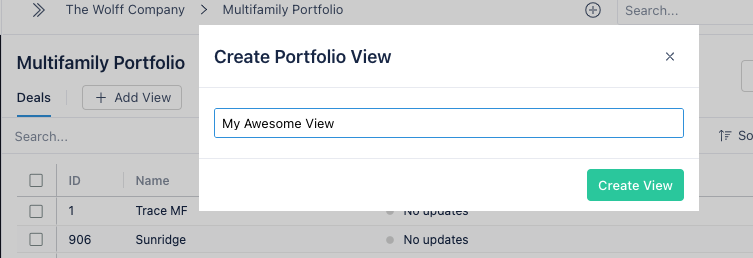
To create a custom portfolio view:
- Click + Add View to the right of the other portfolio views
- Enter a name for your custom view
- Click Create View
After creating the view, you will now see it alongside the other views for the portfolio.
Editing a Custom View
By default, a new custom view only includes the three required columns: ID, name, and status. In addition, a newly created custom view has no customized sorting, grouping, or filtering applied to it.
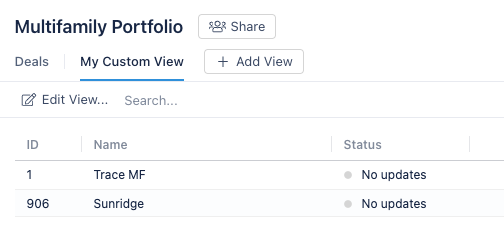
Rename a view
To rename a view:
- Click Edit View at the top left of the toolbar
- Click Edit View Name...
- Rename the view and then click Save
Add or Remove columns from a view
Each view can have a different set of columns assigned to it. To edit the set of columns present on a view click on Columns in the table toolbar. This will show a popup that will display all of the custom columns that have been added to a view so far.
The set of columns available to add includes all deal attributes, events from a project schedule, and metric values from the current UW Analysis. To add one of these columns to a view:
- Click + Add Column
- Select a column to add from the dropdown
- Click Add
To remove a column from a view:
- In the list of columns, click on the checkbox next to the name of the column you want to remove
- Click Remove Selected Column(s)
Apply Custom Sorting, Grouping, and Filtering
Throughout WolffTrax, you will notice that most data tables shown have an attached toolbar for performing various operations on the table data, namely sorting, grouping, and filtering. In addition to the toolbar, the table itself has built in features for these operations. For more information on how to use these tools to change the view of a given table, see Using data table tools.
To change the default layout for a portfolio view:
- Use the tools provided in the table toolbar or in the table itself to sort, group or filter the data how you want it to appear by default
- Click Edit View... at the top left of the toolbar
- Click Save table layout
- After reviewing the dialog popup, click Yes
Delete a view
To delete a view:
- Click Edit View at the top left of the toolbar
- Click Delete...
- After reviewing the dialog popup, click Yes